

If you’ve migrated SSRS to a new server and your data-driven subscriptions have disappeared, or new subscriptions are failing with a generic timeout error, this post walks through three separate issues we hit on a single migration and how we resolved each one.
Data-Driven Subscriptions Disappeared After SSRS Migration to SQL 2022 Standard
After migrating SSRS from SQL 2016 Enterprise Edition to SSRS SQL 2022 Standard Edition Data-driven subscriptions disappeared from within the SSRS web portal. However, I could see the subscriptions in the ReportServer.dbo.Subscriptions table.
SSRS was migrated from an EC2 instance where SQL and SSRS, etc. was installed by a DBA to an EC2 instance that was built using a template where all components were installed. When this was originally built out, we asked that they test. They said they did some testing, but they did not look at subscriptions in the portal nor did they create a subscription.
What the web portal looked like on the new SQL 2022 Standard Edition server:

What we were expecting:
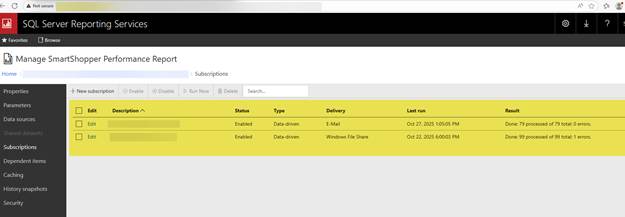
If you tried to create a new subscription on the new SSRS server, you do not get the Data-driven subscription option:
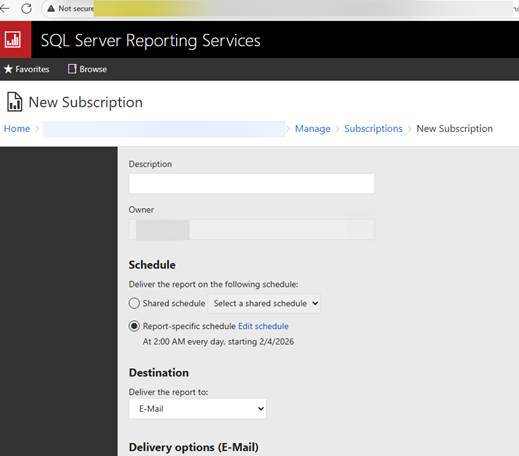
The type of subscription that was missing:
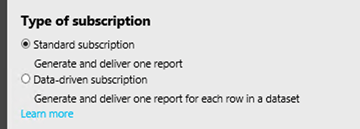
Troubleshooting steps that did not help:
- Since I was not the one to do the migration of the SSRS DBs (reportserver and reportservertempdb), I verified that all tabs within SSRS looked the same on both servers, I also checked that the encryption key was loaded and all settings were set.
- I looked at permissions within SSRS web portal.
- Manage folder, Security – I noticed on the original SSRS server it had BUILTIN\Administrators permissions set to Content Manager. I checked who was in the local administrators’ group on both servers. On the new server, the service account that was set within Subscription Settings tab was not added to the new server local administrators’ group nor did I want it in there. I changed security settings on the new server to so that account had Content Manager permission since that service account did not have it set but the BUILTIN\Administrators group did.
- Site settings – BUILTIN\Administrators had System Administrator permission so again I set the service account that was set in Subscription Settings to have System Administrator permissions. Restarted SSRS and again no Data-Driven Subscriptions.
- I looked at SSRS logs and fixed some email errors, but nothing stood out on why they were not shown. We could see email subscriptions.
- I compared the RSReportingServer.config on both servers to see if anything was off. Nothing that stood out besides what I changed.
Talk about pulling your hair out in frustration!
The fix for the missing Data-driven subscriptions:
I found out Standard Edition for SSRS does NOT allow you to create data-drive subscriptions!!!! You must have Enterprise Edition!
Again, we used the AWS template to create a new EC2 instance. No, I do not like templates, but they wanted pay-as-you-go, so you must use a template. With this new version\server, I asked to get new drives added and I moved the databases to that new data and log drive as well as moved tempdb onto their own drive.
I set FileShareStorageLocation within the RSReportingServer.config file to use the D:\ drive instead of C: \since reports that were running on the Standard Edition server were filling up the C:\ drive which in and of itself caused issues. This change allows reports to use a different drive for report runs. I also disabled any SQL services within SQL Server Configuration Manager that were not wanted\needed. With this change, I could now see Types of subscriptions.
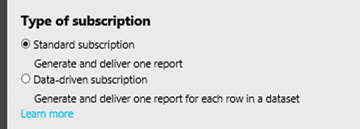
You would have thought my issues were done… NO they were not.
Subscription Agent Jobs Not Created After Upgrading to Enterprise Edition
Once the original problem was “fixed”, I noticed a new issue. On the new Enterprise Edition server, I noticed that the subscription jobs were NOT automatically created. We do not copy those over, on a new SSRS server restarting SSRS “should” create those new subscription jobs if they do not already exist. We want SSRS to create them, so I know all is well when a new subscription is created then a corresponding Agent job gets created via SSRS. They have over a thousand subscriptions; I would NOT easily notice if the test subscription was created and I did not want to spend the time determining which test subscription was tied to which Agent job.
Not the fix but told me a lot:
- I changed the account that started SSRS from using a Virtual Service Account that did not have sysadmin rights to my domain account (yes, I have sysadmin rights within SQL). Restarted SSRS within Report Server Configuration Manager and lo and behold the subscription jobs were created. I deleted all 1000+ of them and changed the account back to Virtual Service Account. I wanted to use a Domain account, but the client insisted on using the Virtual Service Account since that is what was set on the server we migrated from.
- Why I did the above change… I was troubleshooting an SSRS issue for a different client and an SSRS job would not run without changing the owner to SA and no changes were made to SQL or SSRS. Since this client server was an AG, failovers would change that owner back to the account starting SSRS since I have a mechanism where SSRS jobs get deleted from primary and the restart of SSRS adds that job back to the new primary server which brought me back to square one. I ended up changing the account that started SSRS to my domain account then back to a new domain account that did not have special privileges. The original domain account had DOMAIN ADMIN rights! Yes, you heard that right. I was mortified. I did not build these servers out. I had the client create a new domain account with no special privileges. I added that account to the primary server with no special privileges and removed the old SSRS account. I let SSRS set the permissions for that account which is done when you change accounts within Report Server Configuration Manager. I restarted SSRS and ran the job with the owner not changed and it ran. I used DBATools to copy that account to the secondary server. I even ran code to set all permissions for role RSExecRole just for giggles. Failed over and ran the newly created subscription job and again it worked. Sometimes thinking out of the box works but sometimes it doesn’t.
The fix:
I checked the virtual service account permissions within SQL. I checked to see what was set within MSDB since I knew that is where permissions are set for accounts that we do NOT want to have sysadmin rights to create jobs. I noticed that role SQLAgentOperatorRole was not set. I set that permission and restarted SSRS. Reporting Server subscription jobs were now created!
We do NOT want to change the owner of those jobs to something else, especially if we do not give sysadmin rights to that account. Again, why would you give that access? Everyone and their mother should NOT have sysadmin rights.
When you migrate to a new server, lock things down and have them test before the final migration. The account that starts SSRS must be the owner of those jobs so that the service account can delete that Agent job if that subscription is removed from within the portal.
At this point, I released the server back to the client, thinking I was done. BUT no…
New Subscriptions Failing with Timeout and ‘An Error Has Occurred’
After releasing the server, the person who creates reports and supports SSRS tried creating a new data-driven subscription. He reported back that the subscription creation would time out, and the “An error has occurred.” message appeared. What a not-so-helpful error! I tried creating a basic email subscription, and I too got the same error.
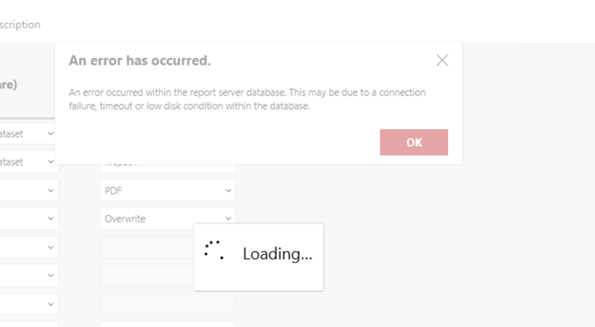
Troubleshooting steps that did not help:
- This template had an outdated patch level of SSRS installed. For SSRS starting with SQL 2017, you must patch differently. It is no longer included in SQL patching. To find out what build of SSRS that is running open Report Server Configuration Manager. Login and the first window Report Server Status page will tell you the Product Version. Go to this website to find out what the latest build is – https://sqlserverbuilds.blogspot.com/2020/09/sql-server-reporting-services-ssrs.html. Find the version of SSRS you have and want to patch. Look for the green Download
 button and click it. That button will redirect you so you can download the latest build of SSRS. I patched SSRS and tried creating a new email subscription. Same timeout issue.
- Patching did not help my issue, but it needed to be done.
- Again, I looked at everything – SQL logs, SSRS logs, configuration files, etc.
At this point, I am so frustrated and want to quit, but that is not who I am. Sometimes you have to throw in the towel and bring someone else in for a fresh set of eyes. I contacted a coworker and went over everything with him again.
The fix:
- About those fresh set of eyes…. Apparently, that is the key to finding something you looked at over and over again. After looking at different things on our own again, then coming together on a screen share, he found the issue. But prior to that, we commented out the Oracle and Teradata data sources in the configuration file to help “clean up” errors in the SSRS log. You must restart SSRS to verify they no longer appear. He found a permission issue in the SSRS log that I missed. Maybe because I was searching for the word ERROR, and with so much information in the SSRS log, finding something like that can be easily overlooked. At least that is what I am telling myself to make me feel better in this whole debacle. It was an EXECUTE permission denied on the object ‘xp_sqlagent_notify’. This issue should NOT have existed since permissions should have been set when the role RSExecRole was created via SSRS when I pointed SSRS to use that restored database. Those roles existed in both master and msdb. There are blogs out there that provide the code to grant EXECUTE permissions in master and msdb. He ran it, and I recreated a subscription, and hallelujah, it created the subscription. I verified both the subscription and the job. I deleted the subscription in the portal and again verified the job deleted.

- I asked my coworker who restored the original DBs on the Standard Edition server whether he created the DBs first using Report Server Configuration Manager, then followed our migration process, or restored them and then set things up in Report Server Configuration Manager. He mentioned the databases were already created and set up, then he just followed our normal process and restored, etc. The only thing I did differently was I restored the two DBs first then used Report Server Configuration Manager to point to an existing SSRS database. I have done this before and did not have these issues, so I’m not sure why it happened here.
This time, when I released the server back to the client, everything worked as we expected. They officially migrated to this new server and dropped the other server from the AWS portal.