

Find All SQL Server Instances On Your Network!
It’s been awhile since a tool has given me that giddy, starstruck feeling but it’s happened this week… If you ever struggle with instance discovery and management, I hope you get excited and try this tool out as well. Bear with me as I walk through it.
If you are like me, you have racked your brain for ways to find all of your SQL Server instances on the network. Maybe you didn’t get a chance to be involved in the vendor selection process and ask these questions but you are responsible for all instances known and unknown. Maybe you have to do an enterprise license true up? No matter the reason one of the biggest pains to this DBA is trying to find your SQL Server instances. There are ways to do it with SQLCMD or OSQL but they don’t catch nearly half of the instances because of network/UDP/security/etc issues. There are command line scripts you can write that use DMO or SMO to enumerate SQL Instances but they still miss some.
Well this past week I was at the Waltham, MA Microsoft Technology Center and I whined about this to Rob Walters (Co-Author on two great books about SQL Server 2005 and SQL Server 2008) and Rich Crane (Co-Author of this WCF book and general MTC guru). The reply was “MAP, you need to see MAP”. I hadn’t seen MAP yet and when I saw it, it was love at first sight. (Seriously)
MAP?
“Microsoft Assessment and Planning Toolkit” is a tool suite that Microsoft has developed for various purposes. One of those purposes appears to be helping give suggestions on upgrading your environment (it’s a free tool so it has to have some mutual value, right?). You can see all about it at the MAP site here.
I have only played with this tool as it relates to SQL Server and I am sure it offers more value in other ways but let’s just talk about what it does for SQL Server. That’s the part that caught my eye.
Basically this tool can connect to machines either you specify specifically, exist on an IP range you specify or exist within an Active Directory domain you specify and have Admin privileges on. The SQL Server Accelerator will interrogate these machines and through low impact WMI queries ask if SQL (or related SQL components) is installed. It will then report back a lot of great information that can really help you out.
Best of all? It formats this data in an Excel Spreadsheet giving you the following pieces of information:
- Computer Name
- Instance Name
- SQL Product Name
- SQL Version Number
- SQL Service Pack level (from the version number)
- SQL Server Edition (Developer, Standard, Express, etc)
- Clustered yes/no flag
- Physical or Virtual Machine indicator
- What sub-directory that instance is in (MSSQL.1/MSSQL.2/etc)
- SQL Server State (Running/Stopped)
- SQL Server Service start mode
- O/S and Service Pack info
- 64/32 Bit flag
- How many processors/cores/logical processors
- CPU brand/model number/speed/etc
- Memory
- Drive letters with total and current free space
- And other useful information
So you can kick this off to go through your AD, have a Domain Admin login to the utility (it does not remember credentials and it is very light impact, simple WMI queries after simple AD “walking”), let it run (it can take awhile as it has to wait for a WMI/network timeout for each machine) and eventually get a spreadsheet with all of your SQL Server information! You can then import that to a database, write code to interrogate it, plug it into a powershell auditing script to check all servers for policies, etc. etc. This is a HUGE tool in a DBAs toolkit and I am very excited about it.
There is a second tab on the spreadsheet listing similar information about other components found like Analysis, Reporting and Integration services.
Okay, what’s the catch, how tough is it to use?
No catch. One of the deliveries is also a word document that summarizes information about your environment, gives some pretty charts showing what editions and versions you are on. If you are not on SQL 2008 across the board it has a good executive summary telling you why you should upgrade. That isn’t really a catch, it’s half market-ware but half useful. If you want to have some information to give to management about why to upgrade, this document is your friend.
As for the ease of use.. Nothing to it really. Bear with me and my screenshots as we walk through the use of it. You can download the tool at the home site for the toolkit. This installer will install SQL Server 2008 Express Edition (instance gets called MAPS. Rob tells me if you already have an instance called MAPS, it won’t recreate it and will just put the database onto that instance)
Once the install is done you get presented with a simple UI:

From here you create a database to use for the storage of the data. Simply Create a database and give it whatever name makes sense for you. I called mine MAP_Test:


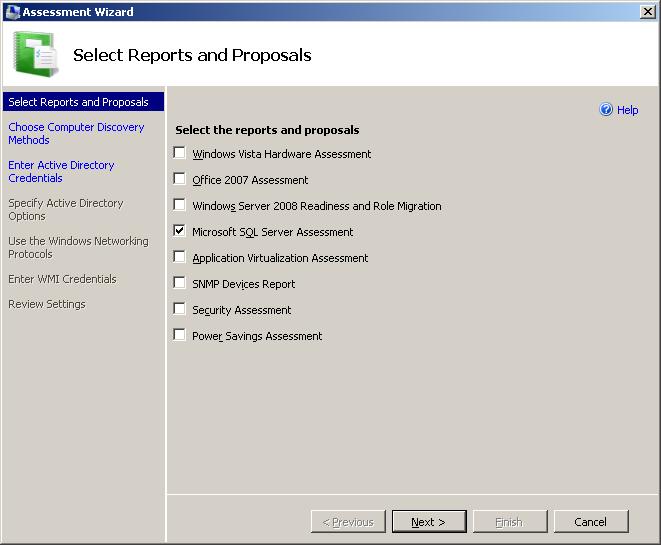
 Once the database is created you then go back to that dialog and from the middle pane, select the “Identify SQL Server instances to upgrade to SQL Server 2008” option. We get a new dialog box confirming the reports/proposals you want the tool to review:
Verify SQL Server assessment is checked and click Next. This next dialog box is where you can choose your connection options. For a quick test, I chose “Manually enter computer names and credentials”. This allowed me to go to a computer I was already local admin on and enumerate all installed SQL Instances. This weekend I will be letting this tool run with a Domain Admin typing their credentials (again it’s not saving them, I verified this when playing in the MTC lab). You can also specify another method that works best for your environment.

Once you click next you will be greeted by a screen that allows you to specify authentication informatio and specific machine information if you selected to look at one server. Your account will need to have admin privs on the machine(s) being checked. I am doing it as a domain admin this weekend to hopefully find all cases of “Rogue” instances that I should be enforcing policy against or at least should know about.
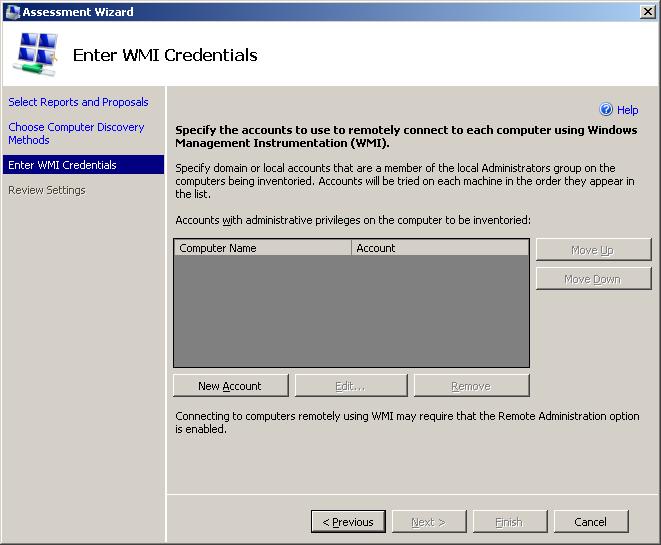
Once you supply your credentials, click finish and the collection begins. The dialog box below describes the status. Beware, this can take a long time depending on how many machines it needs to check. Try it with one machine and get a feel for the report and delays. I noticed no degradation to the machines I was checking as the footprint is low. As always use caution, understanding and testing when doing anything to your production environment as I post in my empirical evidence post. Test it, get familiar with it and be wooed by the report!
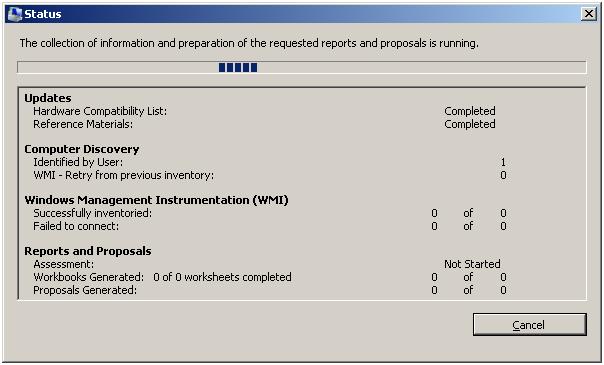
Once this is done the cancel will turn into a close and the status should indicate success/failure counts.
Now Comes the exciting part!
Two things were saved to your Documents\MAP\Map_Test (or whatever you called your database) folder. an Excel Spreadsheet and a Word Document.
The Word document is cool. It shows pretty graphs and tables that upper level management likes to see. It tells you to upgrade to 2008 and why you should. Marketing helped with this document.
The Excel Workbook is where it’s at. The first worksheet is a summary showing you counts of what was found and what couldn’t be found because of WMI issues or insufficient data. The other tabs are the instances found with the list of information from above and the same type of information about non database-engine components found.
Using this Info
As I said above, the possibilities of what to do with this data are limitless. Some things that pop into my head right away:
- Next Enterprise True-Up – When we have to do a true-up, no more getting caught having to compile data from multiple places. Get your latest excel from the MAP tool and you already have all of the information.
- Policy Based Management – I am one of one DBA, there are a lot more instances than me. I am still new here and going through server by server checking things is tedious. Now I can use pre-defined policies and custom policies, table drive or powershell drive the evaluation of policies and have a list of all non-compliant SQL Server 2000, 2005 or 2008 instances in my enterprise. Talk about a force multiplier!
- Service Pack Roll Outs – Do we have any RTM 2005 instances? I don’t know let me query the data that I imported from my MAP spreadsheet.
- Planning Decisions – So you are going to buy your monitoring tool, how many instances do you have anyway? How many are worth monitoring? (trick question, I think even dev/QA should have some level of monitoring.. maybe not your enterprise tool but blocked developers are just as bad as blocked users, if not more expensive)
- Etc – Really anywhere you need a list of your instances that is searchable and importable (Registering servers in management studio?) this tool can greatly help you.
Check it out, it’s free to download and free to use. Maybe I have something wrong with me but this genuinely excited me and makes me a happy camper. It even finds your clustered and named instances with success every time I have tried it!
You Might Also Like
If you enjoyed learning about this free method of identifying your SQL Server Instances, perhaps this content may also be of interest:
- Benchmarking, Who Needs It? We talk about a great free project on codeplex that allows you to get pretty graphs and reports from perfmon. This tool takes the numbers from performance monitor counters, prettifies them and gives a red/green/yellow indicator of status with helpful descriptions for you or your manager.
- Where do I start?! Tips and tricks for the SQL Server DBA just starting out in a new environment.
Want more content like this? Subscribe to this blog’s feed in your favorite feed reader and stay up to date with tips and tricks. I like to share techniques and free tools I use to help me with my day job.