

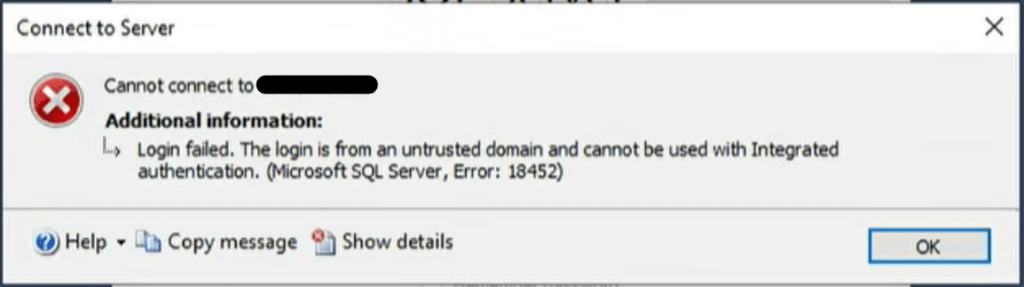
We were setting up a brand-new SQL Server 2022 instance and couldn’t connect remotely using valid Windows credentials. Every attempt gave us the same error: “Login is from an untrusted domain and cannot be used with Windows authentication.” The client only has one domain. Permissions and firewalls checked out. Local connections with domain accounts worked fine. So why was the server rejecting us from every remote machine, no matter how we connected? The answer turned out to be a change in Windows Server 2025 that more and more DBAs are going to run into.
Context
This server is a new install of SQL Server 2022 running on Windows Server 2025 Standard, all local VMs running on servers the client controls. Since this is a new server, it wasn’t impacting the production environment for our client, but it still deserved our attention in case the same scenario comes up on a production server down the road.
The Investigation
We were able to connect to the instance from the local machine using our domain accounts without any issue. To test whether the firewall was causing odd errors, we created a local SQL authentication login and used that account to connect to the server remotely without any issues.
But still no luck with our Active Directory accounts. No version of the server name worked:
- Server name
- Server name with full domain (server-name.domain.com)
- IP address
- Server name with port specified
During this, we also had the SQL Server error log open to see if anything different popped in, not expecting anything novel, just the standard “login failed” messages. With the error log open, we reviewed the last startup of the server to see if the SPNs (Service Principal Names) were registered. They were not, but during the initial review I didn’t think much of it. SPNs not being registered by a SQL Server service isn’t super out of the ordinary. Some domain admins or security professionals don’t want to give service accounts the permission to register or remove SPNs from the environment. Also, with SPNs not being registered, SQL Server typically falls back to NTLM authentication if it can’t use Kerberos.
After a little more troubleshooting and review, one of those moments hit. You know the type: you’ve been looking at a problem and you suddenly remember an online post you recently read that ties everything together. Within the last month, I had read a post about how Microsoft is moving toward disabling NTLM authentication by default due to its known vulnerabilities and the ways it can be exploited. That post got me to check the local security policy on this Windows Server 2025 machine to see if NTLM authentication was restricted, and sure enough:
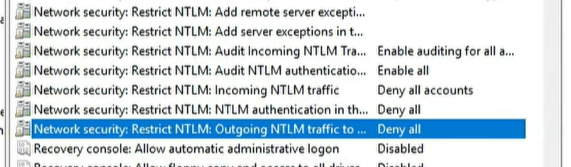
The local security policy showed that all three NTLM restriction policies were set to deny:
- Network security: Restrict NTLM: Incoming NTLM traffic was set to “Deny all accounts”
- Network security: Restrict NTLM: NTLM authentication in this domain was set to “Deny all”
- Network security: Restrict NTLM: Outgoing NTLM traffic to remote servers was set to “Deny all”
That is a full NTLM lockdown. Whether it was set by the client’s security team, a domain group policy, or a hardening baseline, the effect was the same. Seeing that NTLM was completely restricted and verifying there were no SPNs registered in the environment for the service account running SQL Server on this machine explained everything. Our login from the remote machine was trying to authenticate, but with no SPNs present, Kerberos wouldn’t work. And we couldn’t fall back to NTLM because the server wouldn’t accept it. Two locked doors, no key for either one.
The Fix – Register the SPNs
After talking with the client and explaining the problem and the solution, we worked together with our client windows network admin teams to get the SPNs registered properly in the environment. Then a quick restart of the SQL Server instance, and our domain logins started working, not only on the local machine but also from remote machines.
Three Things to Do Before NTLM Goes Away in Your Environment
This one is going to become more common, and it won’t always be on a brand-new non-production server where you have time to figure it out.
Microsoft has been signaling for years that NTLM is on its way out. NTLMv1 has already been removed entirely from Windows Server 2025. NTLMv2 is deprecated, and Microsoft’s three-phase roadmap ends with NTLM disabled by default in the next major Windows Server release. Security teams aren’t waiting. The NTLM restriction policies we found on this server are already showing up in hardened environments, CIS benchmarks, and domain GPOs. The safety net that SQL Server DBAs have relied on for years, where a missing SPN just meant a quiet fallback to NTLM, is disappearing.
You can’t ignore SPNs anymore. Here’s what to do now befor you are caught off guard:
1. Verify your SPNs are registered. Run setspn -L <service_account> against your SQL Server service accounts and make sure SPNs are registered for every instance. Or look up the Test-DBASpn DBATools PowerShell command. You can verify your existing connections are using Kerberos by querying sys.dm_exec_connections and checking the auth_scheme column. If you see NTLM there only, Kerberos isn’t working, and that connection will break the day someone restricts NTLM in your environment.
2. Check your NTLM policies now, not after you get this error. Open Local Security Policy or check your Group Policy and look at the “Network security: Restrict NTLM” family of settings. There are three that matter: Incoming NTLM traffic, NTLM authentication in this domain, and Outgoing NTLM traffic to remote servers. If any of those are set to “Deny all,” NTLM fallback is already gone in your environment. If they’re set to “Audit,” your security team is watching, and the deny is probably next. And if you can’t even see the local security policy, well, get those SPNs registered faster.
3. Add SPN and Kerberos verification to your new server build checklist. If you are building new SQL Server instances, especially on Windows Server 2025 or newer, verify that SPNs registered successfully during startup by reviewing the SQL Server error log. Don’t assume NTLM fallback will save you. The error log will tell you plainly if SPN registration failed. That message used to be informational. Now it’s a warning that remote Windows logins may not work at all. You very likely will need domain or network security admins to assist you with kerberos registration – if they are locking things down.
The Straight Path Team and Skills
Anthony Boich and I worked together on this issue to troubleshoot, test, and resolve it. We used our expertise in troubleshooting authentication errors, testing different parts of the environment to verify they were configured correctly, and communicating our findings and solutions to the client.
This post is part of our Case of the Week series, real SQL Server issues and lessons from the field. Our team of 20+ SQL Server experts supports over 120 clients through our DBA as a Service practice, and we catch issues like this during new server builds, daily health checks, and proactive reviews. If you’re building new SQL Server environments on Windows Server 2025 and want a team that knows what to look for, reach out to us.