

When SQL Server Audits Fail – Quick Summary
SQL Server Audits – they’re running in the background, but what happens when something goes wrong? There is an alert that we have encountered that, if you follow the information in the error, typically does not lead you to the solution. What do you do then? Every minute the audit is not running you are potentially missing the data that you are auditing SQL for.
Context
The following error text can sometimes be seen after the restart of SQL Server:

Message:
SQL Server Audit failed to create an audit file related to the audit ‘AuditName_ServerAudit’ in the directory ‘C:\Program Files\Microsoft SQL Server\MSSQL16.MSSQLSERVER\MSSQL\Log’. Make sure that the disk is not full and that the SQL Server service account has the required permissions to create and write to the file.
Based on the error, the solution would be to free up drive space or add user/service account permissions in the file path. Unless you are initially setting up an audit, typically permissions are not the issue.
The Investigation
When you review the permissions for the containing folder and the audit files you will see that the permissions are correct – SQL Server has the appropriate permissions on both the folder and the file – with full control it can do whatever it needs to do. If the audit has previously run without issue, and if the service account has a password that doesn’t expire (or hasn’t expired) then this is likely not suddenly the problem.
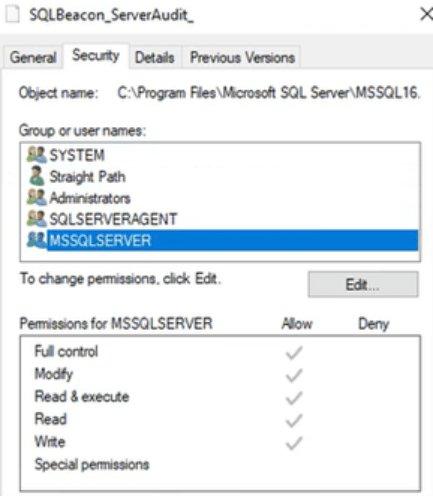
The error also indicates that there may be a lack of space on the drive preventing the creation of a new audit file. This particular audit file exists on the C:\ drive, and since the OS and SQL are still functioning, that is not likely the issue, but a review of the drive in File Explorer confirms that there is more than enough space for the audit file to create.

So… Now what? If you aren’t googling further to find the answer already posted online, you know that this has to do with SQL Server Audit files. It could possibly be due to some setting somewhere, and since we are looking at a specific audit, let’s look at those settings.
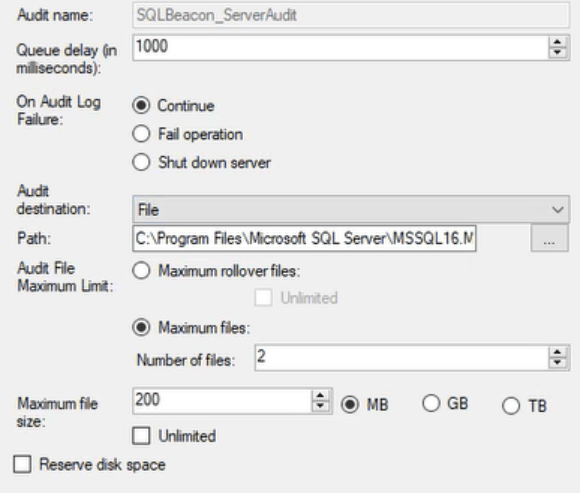
The bottom half of the settings all have to do with the audit file – Audit file maximum limits, and maximum file size. If we review the files in the folder, we see that all of them are 7KB and therefore have not reached the maximum file size of 200MB.

What we do see is that there are 3 files with a maximum number of 2 files allowed. This is where we are running into an issue. Every time the server restarts, or the audit is restarted, a new audit file is created, and if you are reaching an explicit maximum, that could cause an issue.
The Fix – SQL Server Audit Max Rollover/Max Files
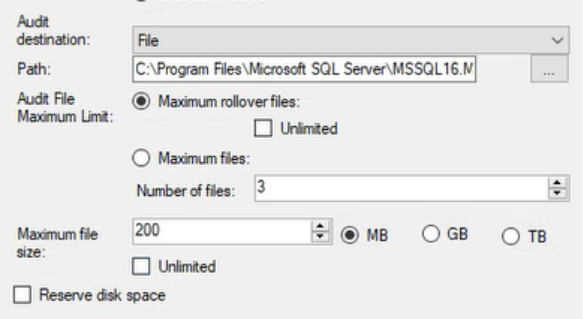
Ultimately, the solution here is to select “Maximum rollover files” instead of “Maximum files” and you can either check “Unlimited” to allow for an unlimited number of files to be created within the file location, or set a number of files that will be created, with the oldest of the file being deleted and a new file replacing it on restart.
To update these settings, you need to first disable the audit:
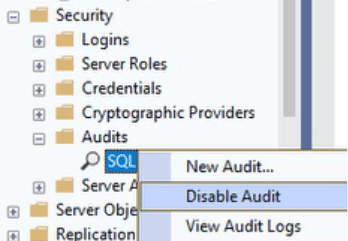
Once the audit has been disabled you are able to update the settings and reenable the audit. This will create a new audit file that was not previously there, and now the audit is back up and running.

Alternatively, if you do not want to (or are not able to) update the audit settings, you could remove the number of audit files to bring the number of files in the target folder below the explicit threshold so that a new audit file can be created. You will then enable the audit to start running.
The Straight Path Team and Skills
The Straight Path Support Team, who all work together to support and meet the needs of all our clients, has been instrumental in learning and supporting clients through these small, yet very impactful situations.